
LCF - Upper Hall
Connect Your Own Device
Want to Connect Your Device to the System?
Here’s how
There’s 2 ways to connect your Device to the system for both audio and video to be shown on screen (Make sure system is on before starting)
Apple Air Cast (Only works with apple devices)
Step 1: Connect your Device to the Wifi Network Called:
Wifi: LCF Upper Hall TV 5Ghz
Password: 101Castle
Step 2: On your device locate your screen mirroring options and select the Upper hall TV
Step 3: Locate the Pannel to the left of the screen and press the Apple TV Button - you should now have the Apple TV feed on screen.
Step 4: You may have to enter a code displayed on the tv to allow you to cast, if so enter it.
Step 5: you should now be up and running and anything on your device should appear on the screen.
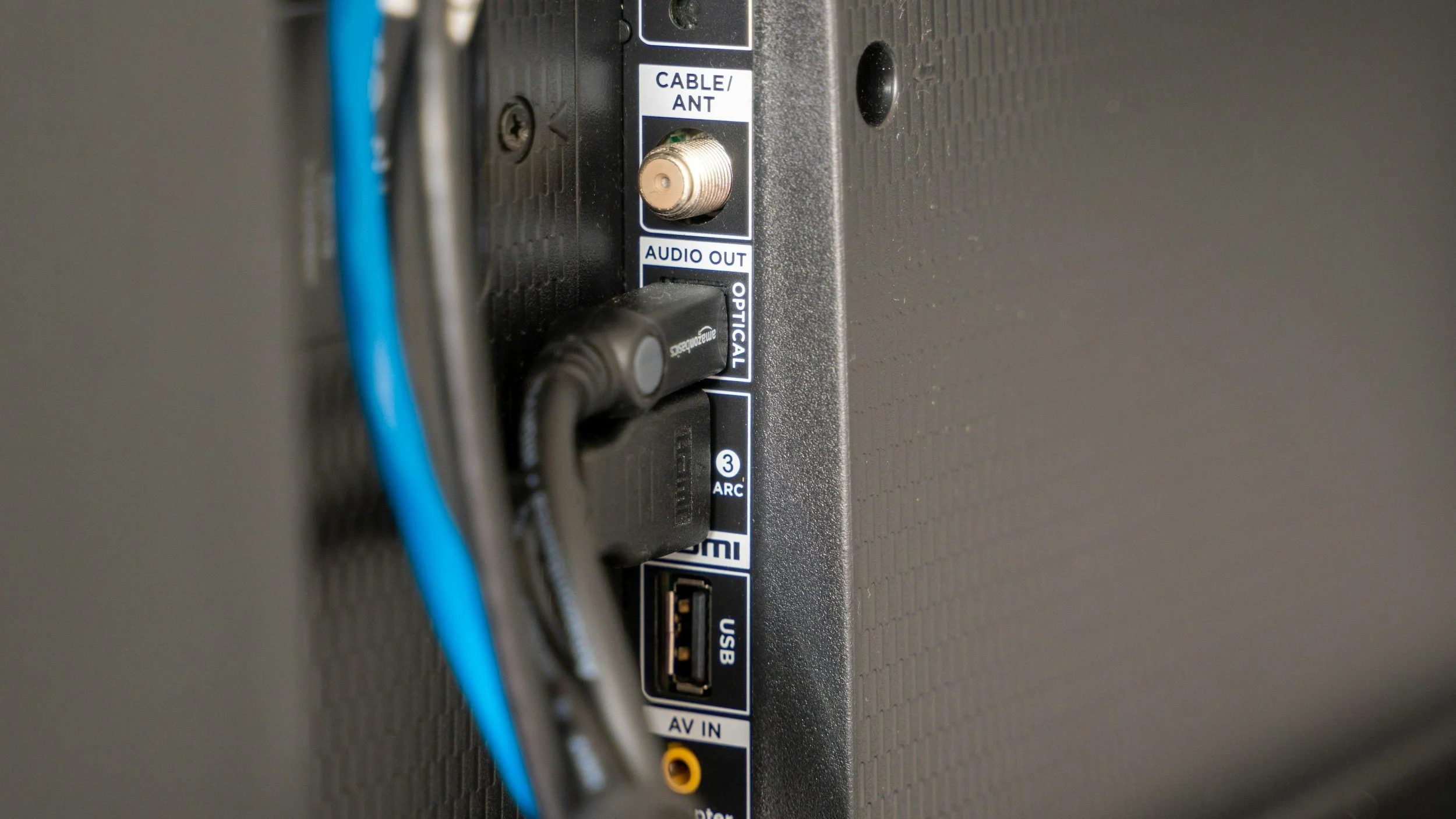
HDMI In
Step 1: Locate a HDMI Cable (Behind subwoofer)
Step 2: Plug HDMI Cable in to the port below the screen on the wall and the other side into your machine.
Step 3: Locate the Panel to the left of the screen and Press the HDMI IN button
Step 4: This should now be displaying your content - If you have no audio check the that the tv fader is up on the mixer