LCF - Upper Hall
Switching Sources
We have made it super simple to choose what you’d like displayed on the TV.
Here’s how to get started:
Good news! Once Everything powered on its super simple to get what you need on the screen - if your having issues getting powered on click here.
You should see a message on the screen like this (see below)
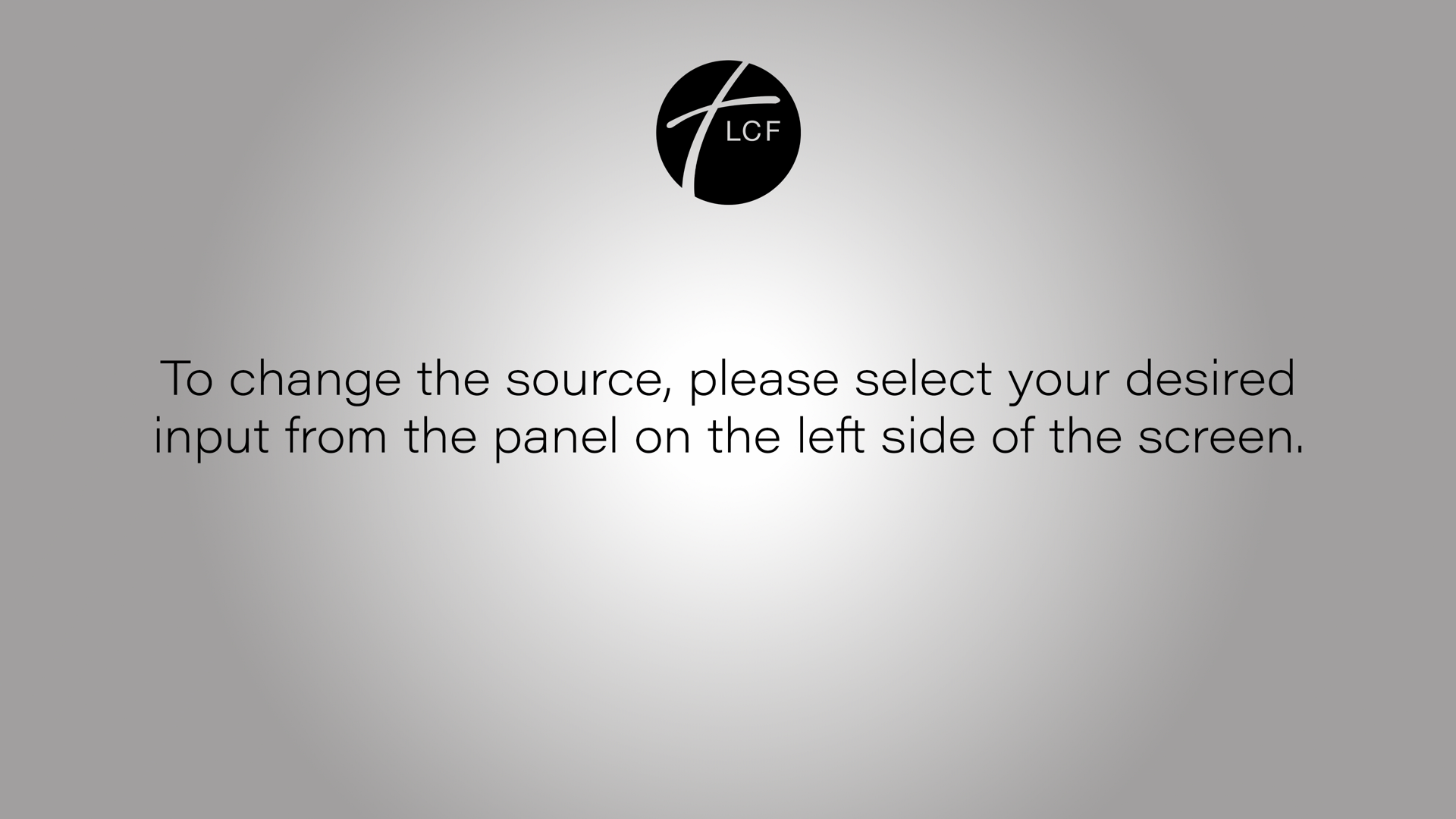
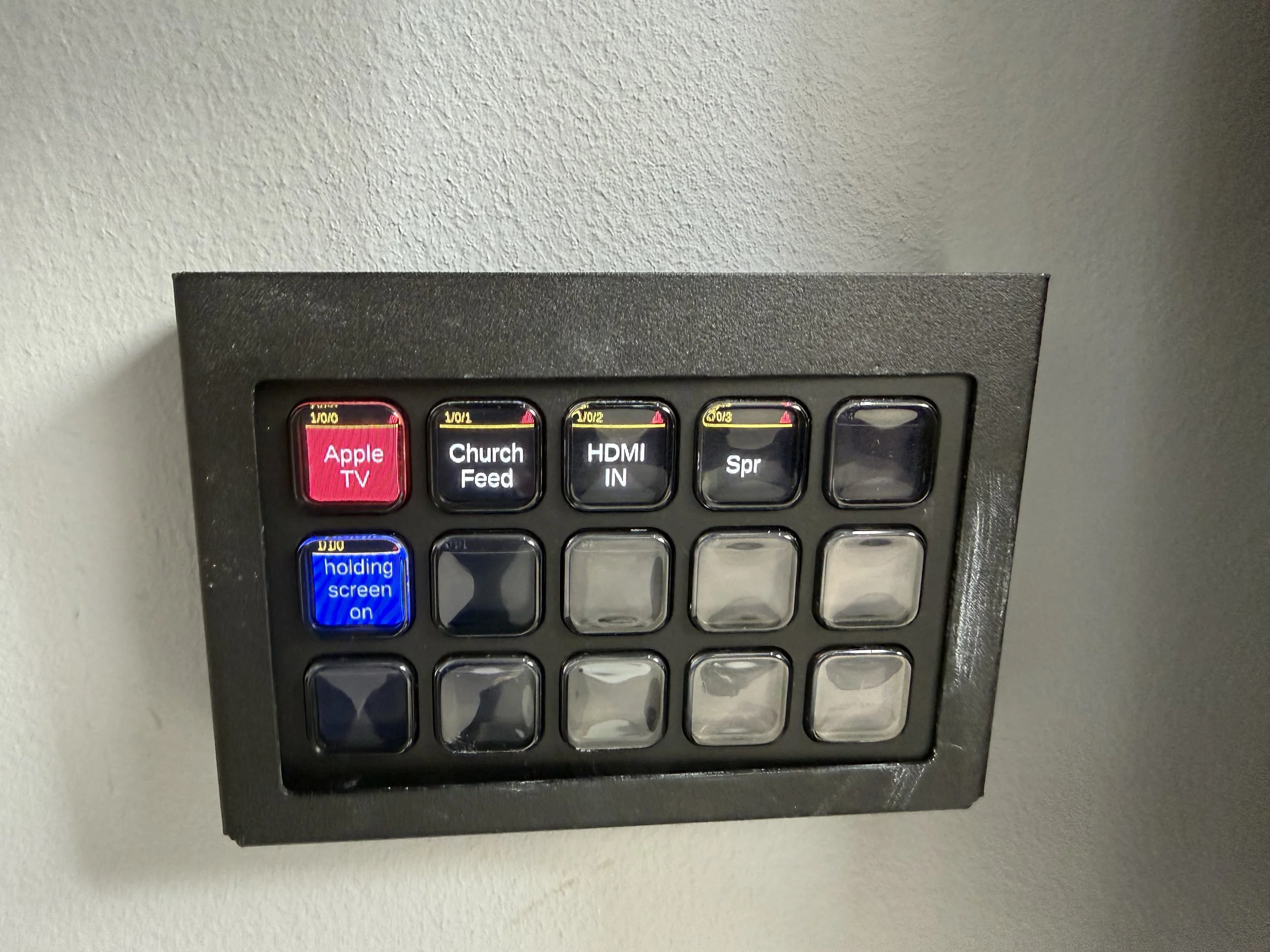
After you’ve seen this, look to the left side of the screen. you will see a panel with a few lights on it.
The sources should read
1 Apple TV - This is mainly used for kids work so they can apple air cast the iPad to the tv. (this will also work for iPhones and Macs. click here if thats what you’d like to do.
2 - Church Feed
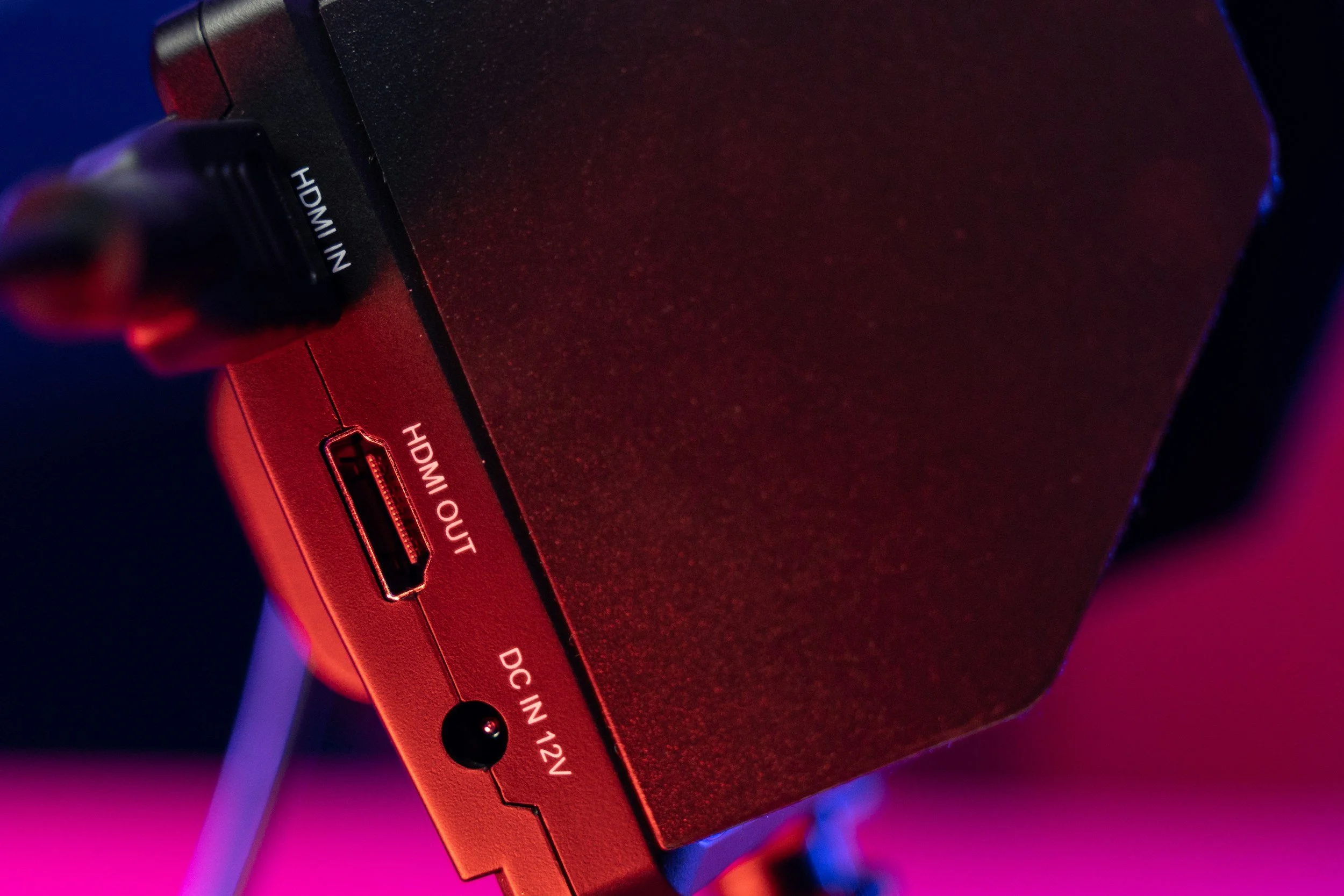
3 - HDMI - This is the local HDMI port you’ll find under the tv - if you wish to plug in anything that sends out HDMI (computer/playstation) this is where you’ll plug in. If you need a HDMI cable there should be one behind the subwoofer on stage.
Now click the source you wish to use and it should appear on the screen.